

In this guide, I’ll show you how you can quickly and easily change the colour and styling of the “edit profile” and “log out” links in the Divi comment area.
By default, the links in the Divi comment area are set as the Theme Accent Colour (found in Appearance → Customise → General Settings → Layout Settings). This can be problematic when the background colour of your comments section is the same colour – this is a problem I discovered when redesigning this website at the start of 2023.
Unfortunately, the Divi Comments module does not have any built-in settings or toggles to adjust the appearance of these links, but thankfully the solution is a just a few simple lines of CSS.
Step 1: Add custom CSS to Divi’s custom CSS area
This is a simple one-step task. Divi has an area in the theme settings for custom CSS – this means that you don’t need to edit any theme files if you are not comfortable doing so.
- Go to Divi → Theme Options
- Scroll to the bottom of this page and find the Custom CSS box
- Copy and paste the CSS code snippet found below
- Click the green Save Changes button
The code snippet
This is the snippet of CSS you will want to copy and paste:
/*** Change colour of edit profile and log out links in comments area ***/
#comment-wrap p.logged-in-as a {
    color: #ffffff;
    font-weight: 700;
    text-decoration: underline;
}
There are three CSS properties in the snippet above. You do not necessarily need all of them if you don’t want them, and you are not limited to just those three either.
- color: This defines the colour of the text link. You will want to insert your desired hex code in place of “#ffffff” (white). More info: https://www.w3schools.com/cssref/pr_text_color.php.
- font-weight: This defines the weight of the text. In my snippet above, it is set as 700 (bold). You can adjust this to be whichever weight you would prefer. More info: https://www.w3schools.com/cssref/pr_font_weight.php.
- text-decoration: This property allows you to add various decorative effects to your text. In my example I have set the link to be underlined, however you can choose other effects if you wish. More info: https://www.w3schools.com/cssref/pr_text_text-decoration.php.
That’s all there is to it! If you used the exact snippet above, you’d see something like this:
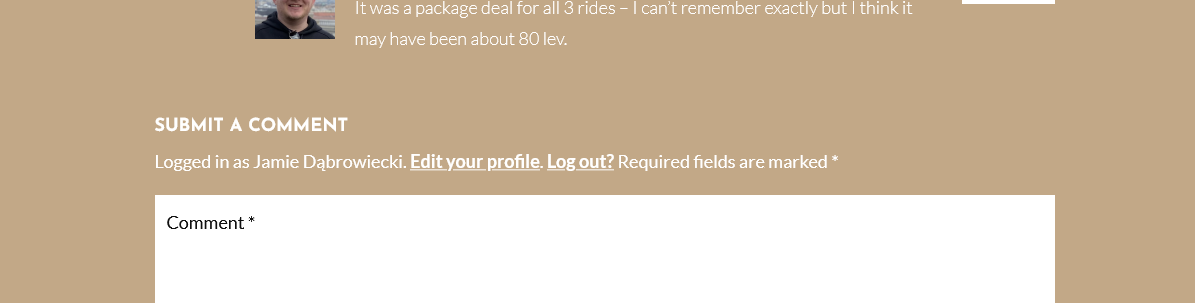
I hope you found this guide useful and were able to achieve what you were aiming for. Feel free to ask any questions in the comments section below or even suggest any Divi guides you may want me to write.

0 Comments